
Settings & users
The section is available to the organisation’s administrator (the Administration menu at the bottom of the sidebar).
Notification settings
Section titled “Notification settings”Administration → Settings, the “Notifications & monitoring” tab:
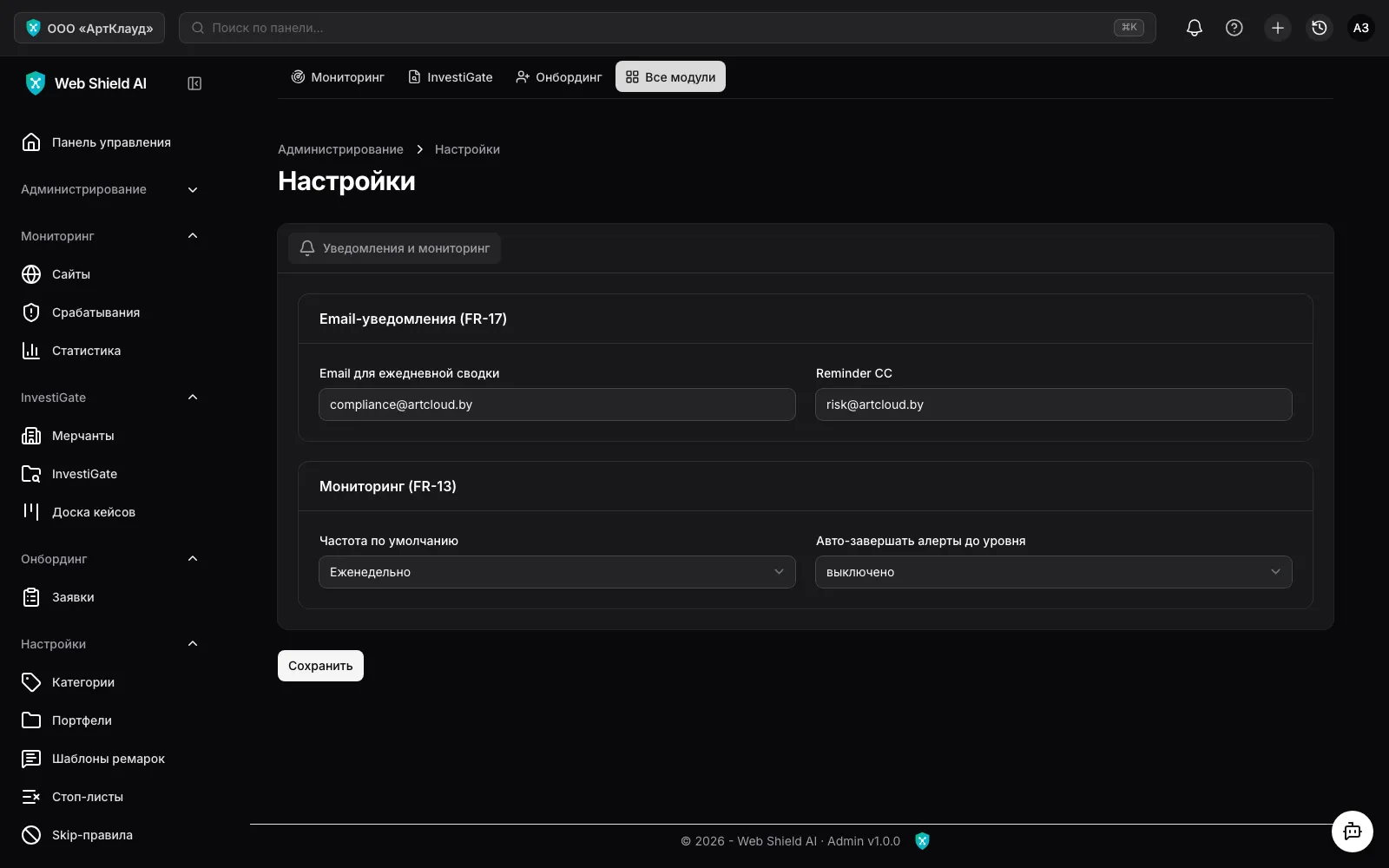
- Notification email — the compliance team address; violation emails go here (the “Notify compliance” action on an alert and automatic post-scan alerts).
- Reminder CC — a copy of deadline reminder emails.
- Default monitoring frequency — applies to sites set to “Auto” while the merchant has no computed risk level yet.
- Auto-complete level — up to which severity alerts are closed automatically without manual review.
Administration → Users — your organisation’s team:
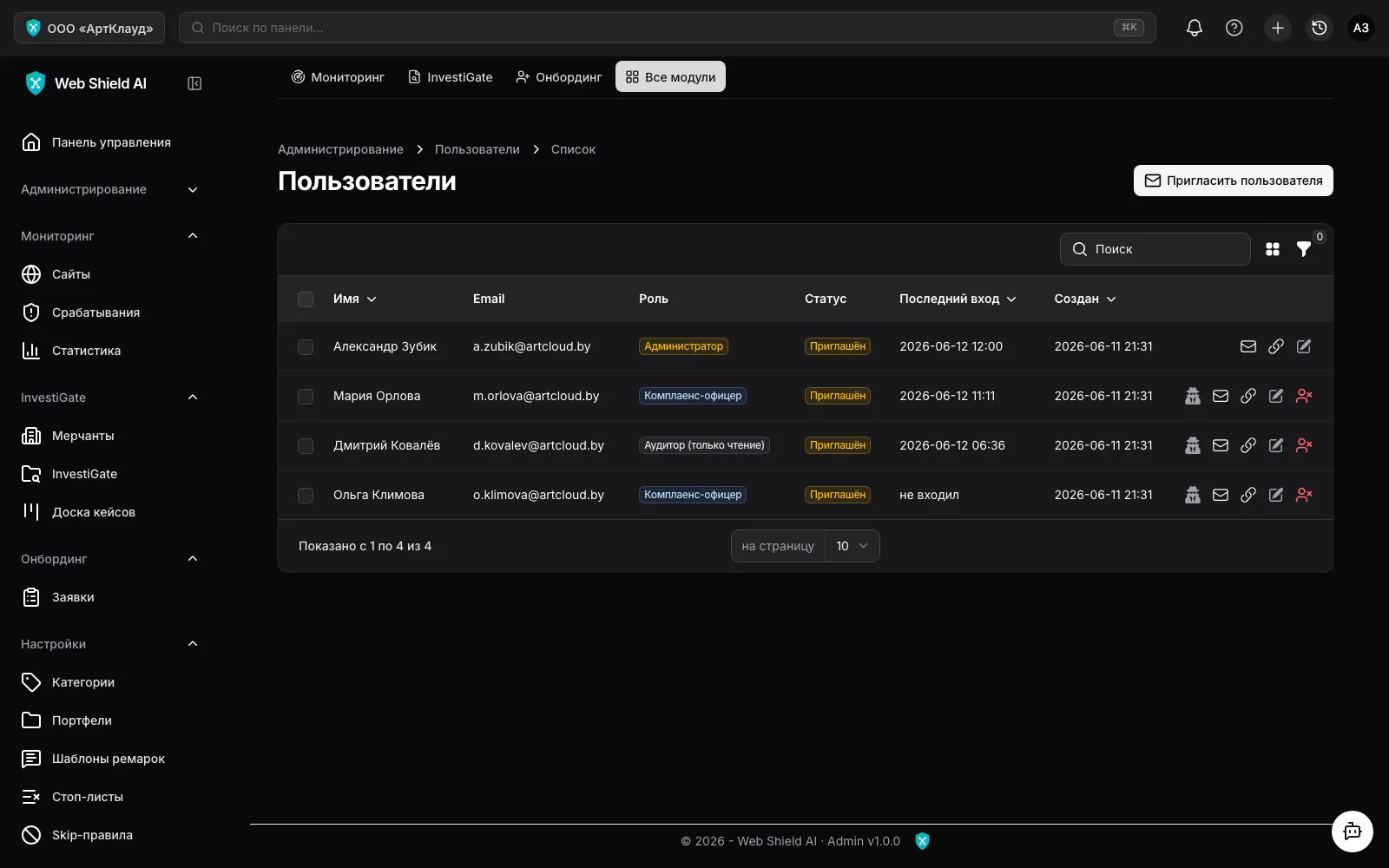
- Creating = inviting: no password is set manually — the new user gets an email with a
link (valid for 72 hours). Until accepted, the user has the
Invitedstatus; the “Resend invitation” and “Copy invitation link” actions are available. - Role — administrator, compliance officer or auditor (role descriptions).
- Disable/Enable — blocks access without deleting the account or its history.
- Impersonate — an administrator can temporarily see the system through an employee’s eyes (for training and support); the action is recorded in the log.
Reference data
Section titled “Reference data”- Portfolios — your site risk groups; used as a filter in lists and reports.
- Remark templates — prepared comments for typical decisions during alert review.
Activity log
Section titled “Activity log”Administration → Activity log — the organisation’s audit trail: who changed what and when (sites, alerts, cases, users, settings). The log is kept automatically and entries are not editable. The history of a specific alert or case is also visible on its page in the “History” block.
Media library
Section titled “Media library”Administration → Media library — all of the organisation’s files: evidence screenshots from scans and generated case PDF reports.